Integrations
The Integrations plugin automates the process of uploading integrations to your infrastructure. It simplifies deployment of custom integrations within Energy Logserver, providing a user-friendly interface. Designed to accelerate development workflows, this plugin allows to validate integrations directly into the Energy Logserver environment, eliminating the need for command-line interaction. Plugin works only for licenses that support siem-plan.
The plugin offers two deployment integration options:
- One Click
- Advance
One Click installation process
The One-Click Installation process is the easiest and fastest way to deploy a selected integration. Using this method, the user simply selects the desired integration and the plugin automatically creates ingest pipelines, imports dashboards and alert rules, and provides direct access to download compatible agents via the built-in wizard.
Follow the steps below to install the integration:
- Open the
Integrationstab in the sidebar. - Select the integration you are interested in from the list.
- Simply press the
One Clickbutton to allow the wizard to install all the content.
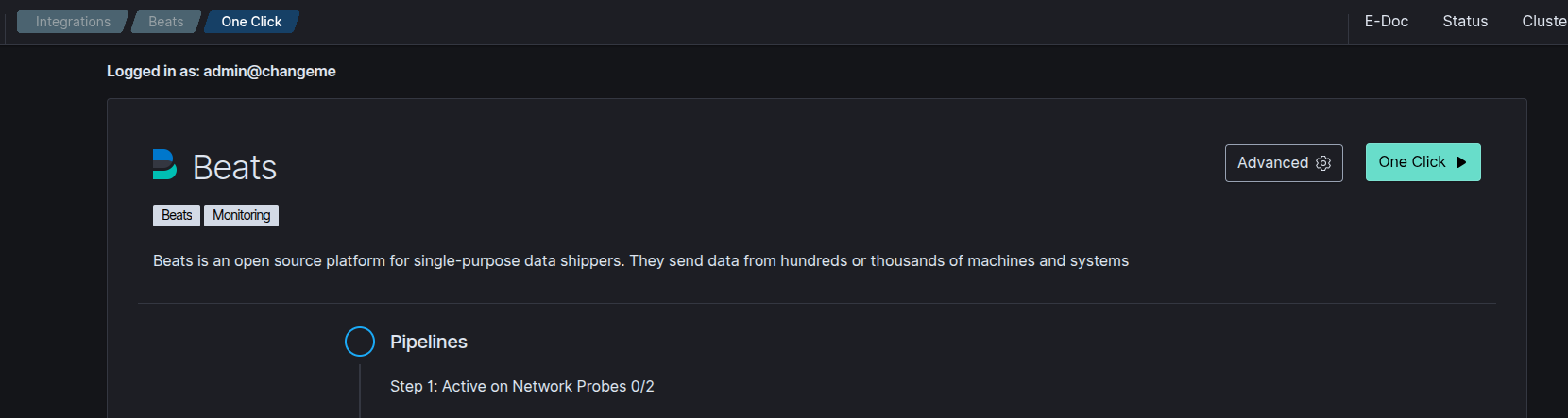
- Select the
Agentsthat are compatible with your device and download them (with configuration files if necessary), to your local machine. Then perform the installation process.
Advance installation process
The Advanced Installation option provides greater control over the components being installed. It allows users to selectively choose specific pipelines, dashboards, alerts, and agents according to their needs. This method is ideal for more experienced users who require a customized setup or want to fine-tune which elements are deployed as part of the integration.
Follow the steps below to install the integration with Advanced mode:
- Open the
Integrationstab in the sidebar. - Select the integration you are interested in from the list.
- Click the
Advancedbutton.
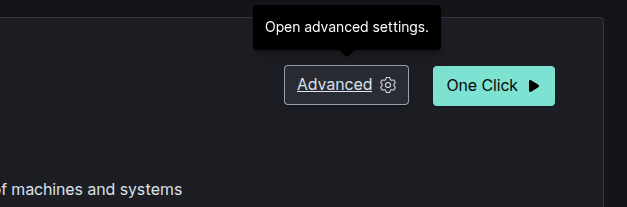
- Select the pipeline on which you want your integrations to be installed.
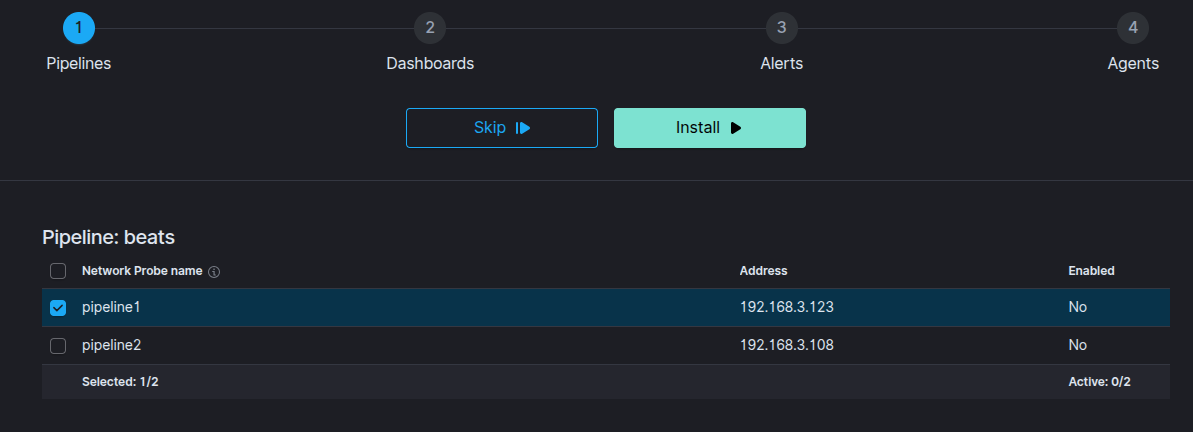
- Select
Dashboardsfrom the list. - Select the
Alertsyou are interested in. - Select the
Agentsthat are compatible with your device and download them (with configuration files if necessary), to your local machine. Then perform the installation process.
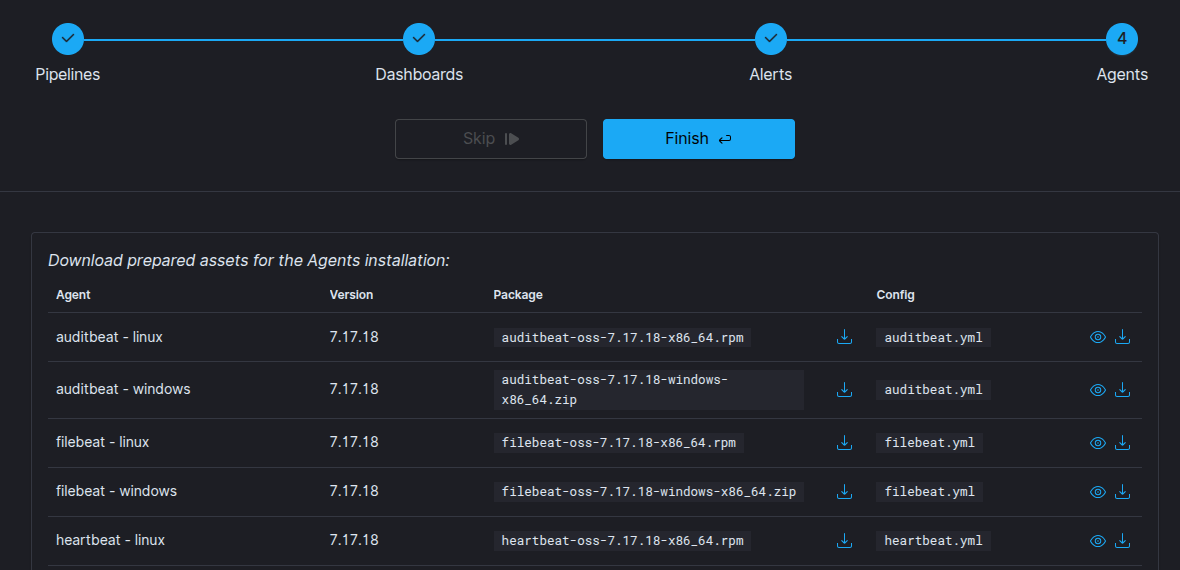
Please note that certain integrations may not offer all options. The range of components available, such as pipelines, dashboards, alerts and agents, can vary depending on the integration selected.
Overwrite
The integration wizard allows you to overwrite your installed components using the Overwrite switch. This enables you to install dashboards and alerts even when they are already installed in your application. This feature is particularly helpful when you want to restore the initial settings for a specific component.
Beats Integration
Beats integration requires a Beats agent to be installed on the reporting machines. The Integrations plugin enables you to download preconfigured Beats agents, with a custom YML configuration file that is automatically generated based on your infrastructure. Please note that, to ensure proper operation, this configuration file must replace the default .yml file in the agent directory before installation.
Details of each integration can be found here
List of selected available integrations:
- OP5 - Naemon logs
- OP5 - Performance data
- OP5 Beat
- The Grafana instalation
- The Beats configuration
- 2FA authorization with Google Auth Provider (example)
- 2FA with Nginx and PKI certificate
- Embedding dashboard in iframe
- Integration with AWS service
- Integration with Azure / o365
- Google Cloud Platform
- F5
- Aruba Devices
- Sophos Central
- FreeRadius
- Microsoft Advanced Threat Analytics
- CheckPoint Firewalls
- WAF F5 Networks Big-IP
- Infoblox DNS Firewall
- CISCO Devices
- Microsoft Windows Systems
- Linux Systems
- AIX Systems
- Microsoft Windows DNS, DHCP Service
- Microsoft IIS Service
- Apache Service
- Microsoft Exchange
- Microsoft AD, Radius, Network Policy Server
- Microsoft MS SQL Server
- MySQL Server
- Oracle Database Server
- Postgres Database Server
- VMware Platform
- VMware Connector
- Network Flows
- Citrix XenApp and XenDesktop
- Sumologic Cloud SOAR
- Microsfort System Center Operations Manager
- JBoss
- Energy Security Feeds